Sync Improvements & First-Time Account Import
Two pain points with Sync Transactions have been addressed in this update: too many old transactions showing up after a reconnect, and no good way to control how much history gets imported when you first link an account.
Importing a Newly Linked Account
When you link a new bank account, it now shows a Run Initial Import button directly on the Manage Accounts page.
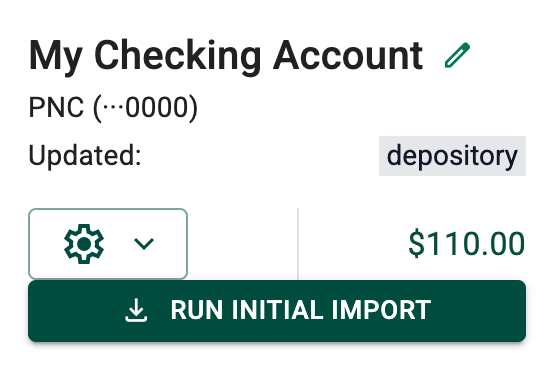
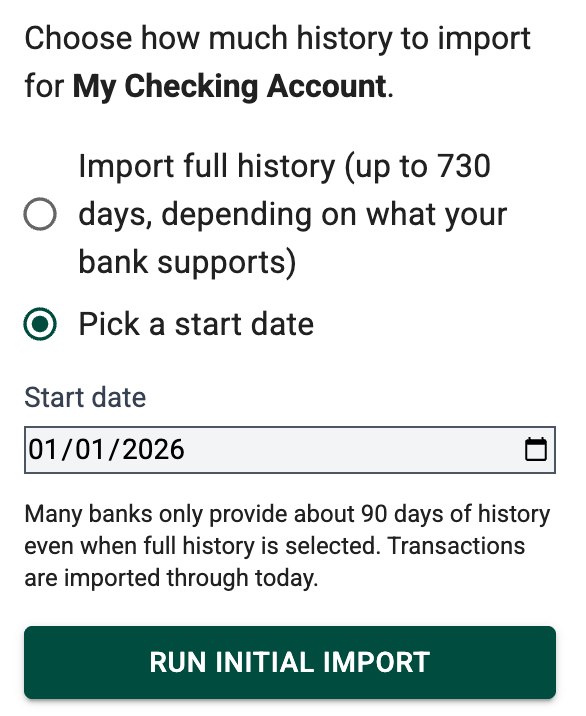
Tapping that opens a dedicated import page where you can choose:
- Import full history. Brings in everything your bank makes available (usually up to 2 years, though many banks only provide 90 days).
- Pick a start date. Only import transactions on or after the date you choose.
Once the import finishes, you'll see a confirmation and the button disappears. From that point on, Sync Transactions keeps the account up to date automatically.
Smarter Sync: Only What Belongs in Your Sheet
When you run a sync on an account that already has a history in your sheet, BudgetSheet now looks at your oldest existing transaction and only inserts new transactions that fall within that time range or later.
This prevents a common problem: reconnecting a bank account and suddenly having hundreds of old transactions flood back in, going back years further than what you actually have in your sheet.
Before: Reconnect a bank, Plaid sends 2 years of history, all of it gets inserted.
After: Reconnect a bank, Plaid sends 2 years of history, only transactions within your sheet's existing date range are considered.
What Hasn't Changed
Regular syncing works exactly the same as before for accounts that are already set up. BudgetSheet uses Plaid's incremental sync to only fetch transactions that have been added, updated, or removed since your last sync.
Happy Budgeting!
- Vance L

